
How to Organize Your Digital Product Bundle Using BundleShelf
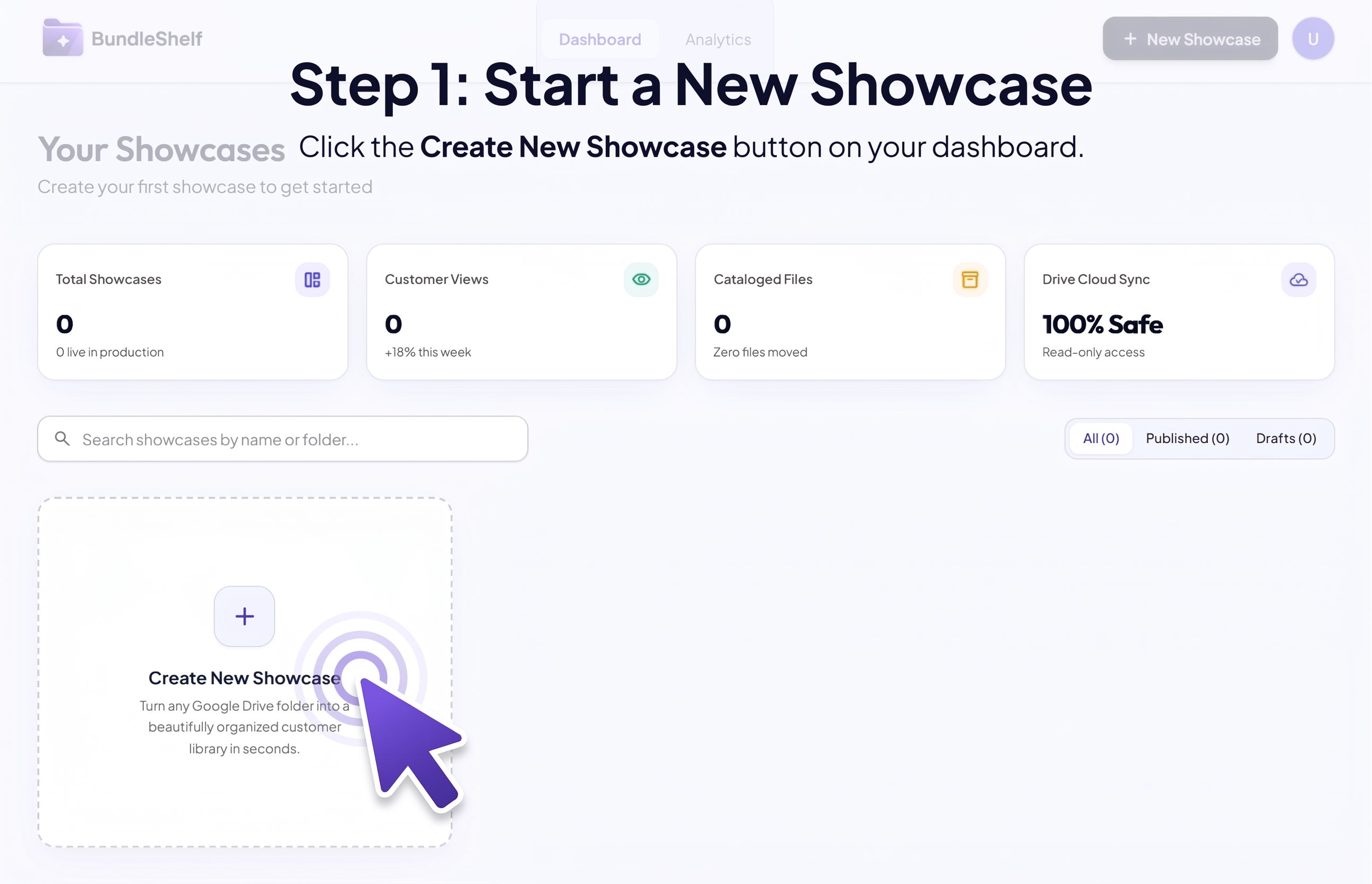
Step 1: Start a New Showcase
- Sign in or sign up for your BundleShelf account.
- Click the Create New Showcase button on your dashboard.
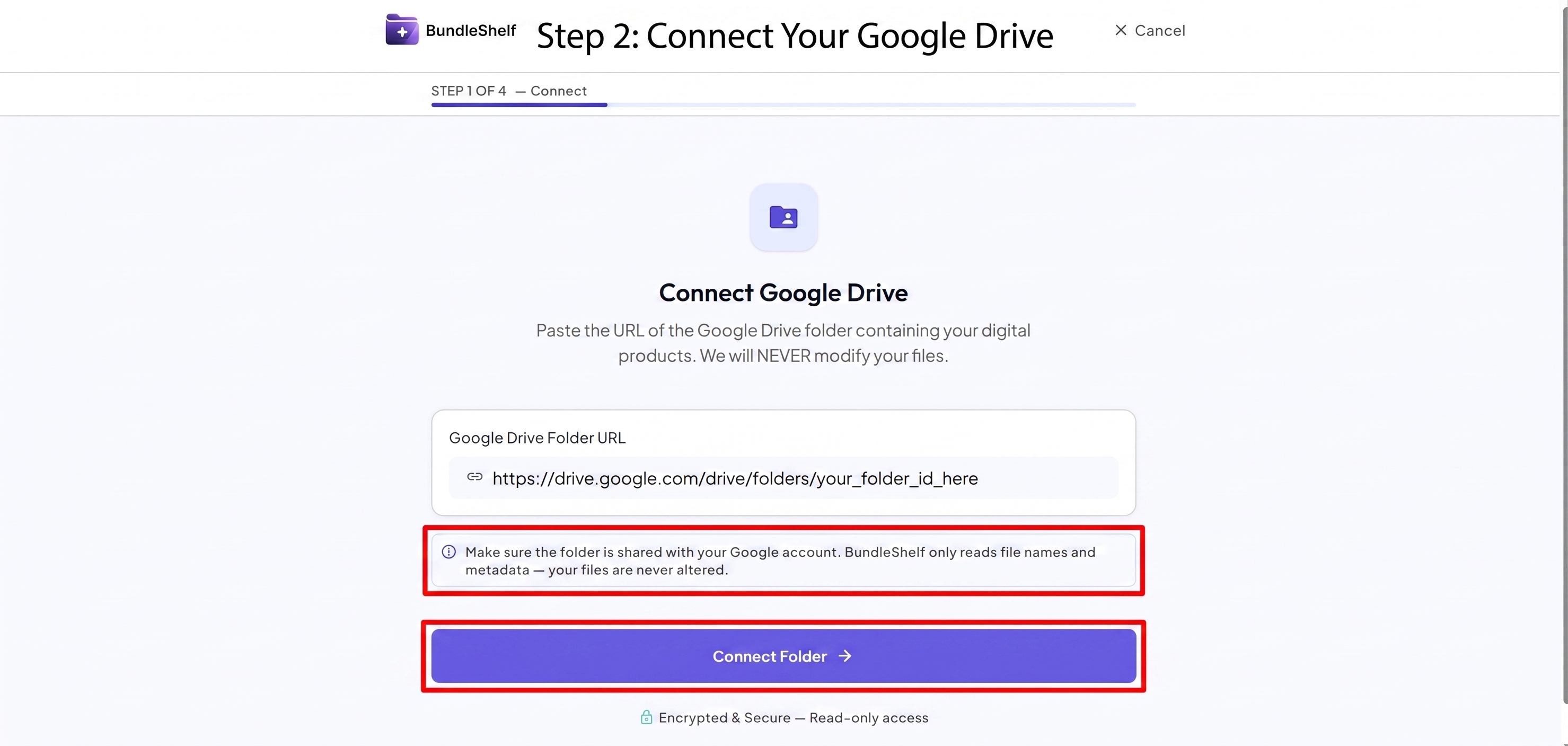
Step 2: Connect Your Google Drive
- Paste the URL of your Google Drive folder that contains your digital products into the Google Drive Folder URL field.
- Note: Make sure the folder is properly shared with your Google account. BundleShelf operates securely with read-only access to file names and metadata; your files are never modified or altered.
- Click Connect Folder.
Step 3: Describe Your Collection
- Help the AI understand your collection so it can accurately discover and organize your shelves.
-
Fill out the prompt fields:
- What is in this folder? (Required) Provide a brief description of the contents (e.g., Lightroom presets, e-books, templates).
- Who is this product for? (Optional) Specify your target audience (e.g., beginner creators, graphic designers).
- Click Continue to AI Organization.
Step 4: Review and Refine AI Organization
- Wait a few seconds while the AI reads the folder structure, analyzes file contents, and builds intelligent shelves.
- Once completed, review the generated shelves and match percentages.
- If you are satisfied with the setup, click Continue to Showcase Builder. If you want changes, type instructions into the text box (e.g., "Move the checklists into a separate Quick Reference shelf") and ask the AI to refine.
Step 5: Customize and Publish Your Showcase
-
In the Showcase Builder, enter your final details:
- Showcase Title and Description / Welcome Note.
- Public URL Slug.
- Visual styling like Accent Color and Cover Image URL.
- Click Publish Showcase in the top-right corner.
Managing Your Published Showcase
Once published, your showcase will appear right on your dashboard. By clicking the three dots icon on your showcase card, you can easily:
- Open Public Showcase or copy the link to add it to your selling platform.
- Customize & Design to edit your layout anytime.
- Check Customer Analytics to track views and user engagement.
- Delete the showcase whenever you no longer need it.