How to Sell Canva Templates With Google Drive (Step-by-Step Delivery Guide)
Master the complete framework for generating official Canva template links, setting up bulletproof Google Drive permissions, crafting professional delivery PDFs, and organizing large digital product bundles.
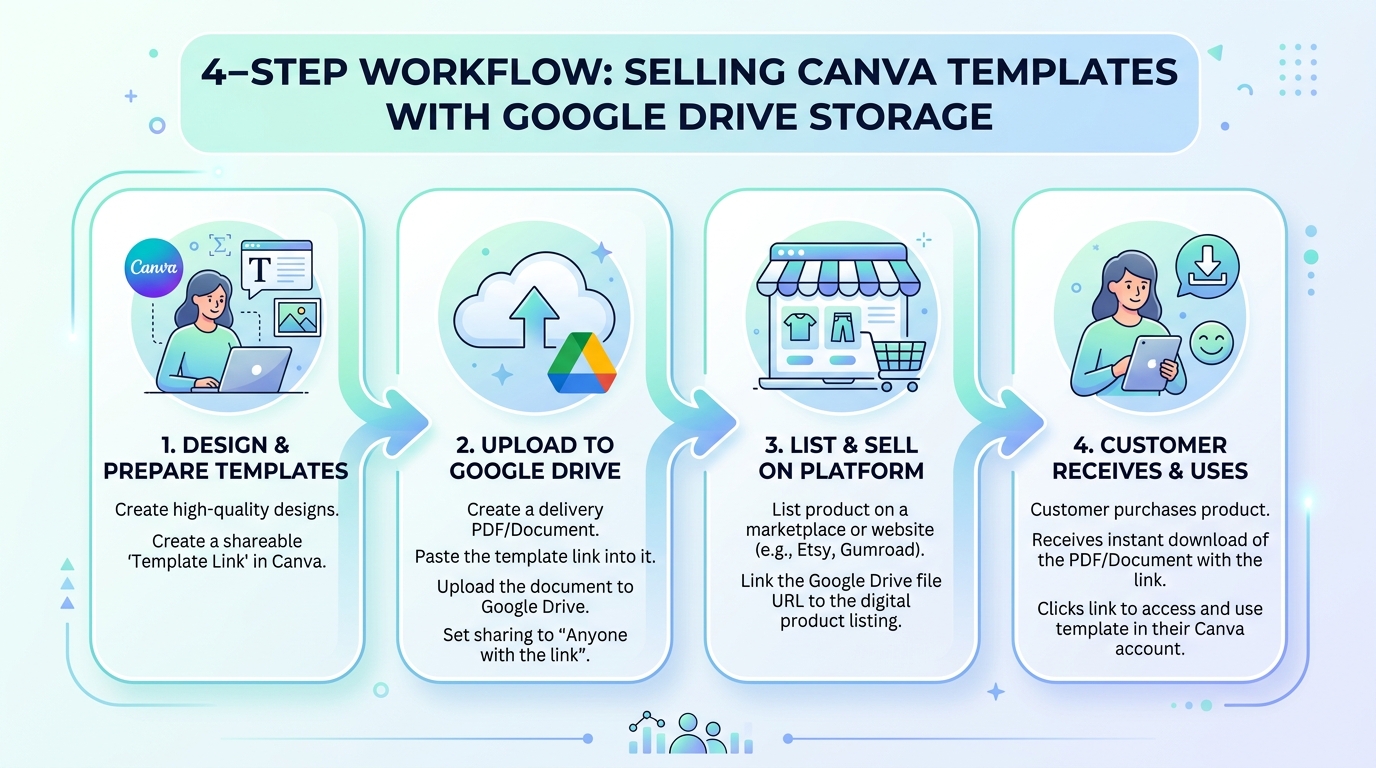
Selling Canva templates is one of the most profitable digital product business models today. Whether you design social media graphics, planners, presentation decks, or brand identity kits, thousands of creators turn their visual designs into recurring income on platforms like Etsy, Shopify, Gumroad, and Payhip.
However, many beginner sellers encounter a major operational roadblock when delivering their products to customers: How do you cleanly deliver Canva template access links—especially when offering large bundles or bonus materials—without running into file size limits or compromising your master designs?
Using Google Drive alongside your Canva account provides a reliable, cost-effective, and scalable delivery ecosystem. In this comprehensive step-by-step guide, you will learn how to generate bulletproof Canva template links, assemble professional customer onboarding PDFs, set up secure Google Drive delivery hubs, and organize multi-file template bundles using the BundleShelf digital product showcase platform.
Why Combine Canva Templates with Google Drive Delivery?
To understand why top digital creators pair Canva with Google Drive, it helps to analyze the mechanics of digital template delivery.
Understanding the Canva Template Link vs. Standard Edit Link
When selling Canva designs, you must never share a standard collaboration or edit link. Sharing an ordinary edit link gives buyers direct access to your master design file. If a buyer edits, deletes, or alters elements in that master file, every future customer sees those changes, effectively ruining your product.
Instead, Canva provides an official Template Link feature (available on Canva Pro and Canva for Teams accounts). When a buyer clicks a Canva Template Link, Canva generates a fresh, isolated copy of the design inside the buyer's personal Canva account. Your original master file remains completely safe and untouched.
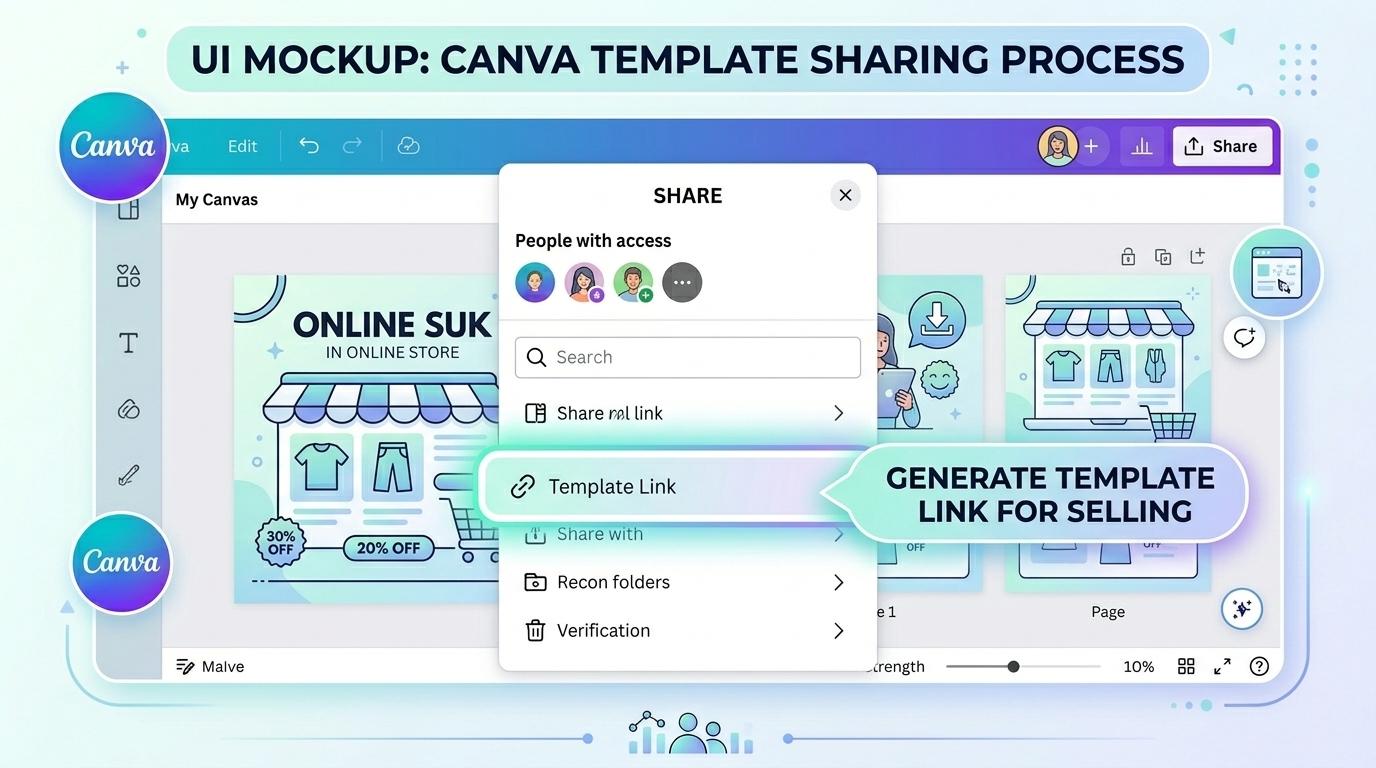
Figure 1: Always select 'Template Link' in Canva to grant buyers copy access while locking your master master design.
Benefits of Cloud Delivery for Bundles and Large Digital Libraries
Most e-commerce platforms impose strict file size limits on direct digital downloads (for instance, Etsy caps individual digital upload files at 20 MB). A large social media bundle containing 100+ template links, instruction guides, video tutorials, and bonus stock images easily exceeds standard platform attachment limits.
Storing your delivery PDFs, bonus assets, and organized template links in Google Drive solves this problem:
- Zero File Size Restrictions: You can deliver gigabytes of assets without worrying about platform upload caps.
- Instant Dynamic Updates: If you fix a typo or update a template link in your master Google Drive document, all buyers instantly gain access to the updated version without requiring manual re-downloads.
- Centralized Organization: You can organize hundreds of template links inside structured subfolders or present them seamlessly when organizing digital downloads in Google Drive with visual cataloging tools.
Step 1: Create and Secure Your Master Canva Templates
Before setting up your Google Drive delivery hub, your master designs must meet commercial publishing standards.
Rules for Free vs. Pro Elements for Commercial Resale
When designing Canva templates for resale, pay close attention to Canva's Licensing Agreement:
- Free Elements: Ideal for maximum customer usability. Any customer with a free Canva account can edit designs containing free elements without incurring additional fees.
- Pro Elements: If your template contains Pro graphics, photos, or premium fonts, buyers without an active Canva Pro subscription will see watermarks and will be prompted to pay Canva to download the finished export.
- Seller Best Practice: Stick predominantly to free fonts and graphics, or clearly state in your product listing description: "Contains Canva Pro elements—Canva Pro subscription or individual element purchase required for watermark-free export."
How to Generate an Official Canva Template Link
Follow these exact steps inside Canva to create your template link:
- Open your finalized master design in the Canva editor.
- Click the Share button in the top-right corner.
- Click on More (or look directly for the Template link option).
- Select Template link.
- Click Create template link.
- Copy the generated URL (it will follow a structure starting with
canva.com/design/.../watch?utm_content=...).
Never use the "Link sharing restricted" or "Anyone with the link can edit" option from the main share panel. Only use the dedicated Template link button. Standard share links allow buyers to modify your original file.
Step 2: Build Your Customer Delivery PDF Document
E-commerce marketplaces require a physical digital asset to deliver immediately upon purchase confirmation. Because platforms cannot directly execute a Canva URL trigger, you must deliver a beautifully formatted Customer Onboarding / Delivery PDF.
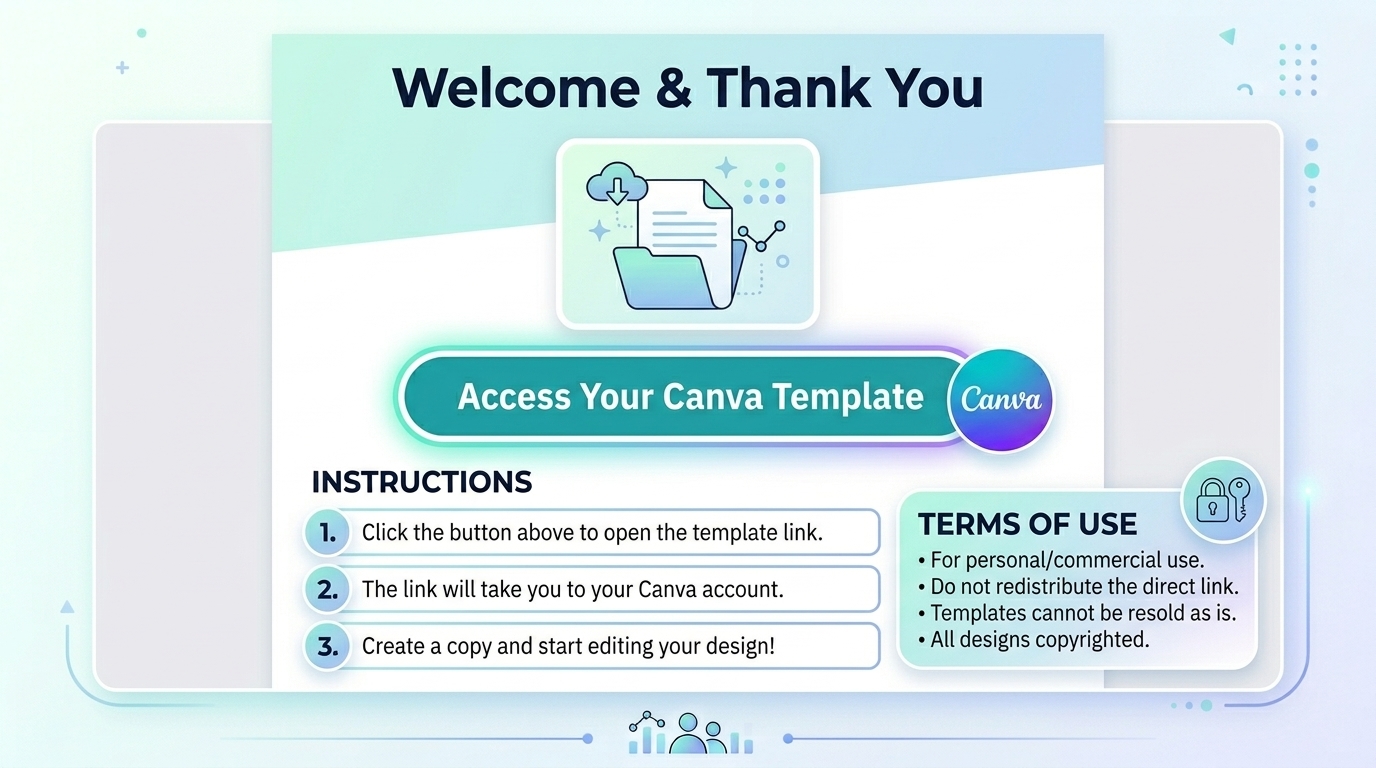
Figure 2: A clean onboarding PDF acts as your product's front door, containing direct access links and support contact details.
Essential Elements of a Professional Delivery PDF
Your delivery PDF serves as your customer’s first impression after purchase. It should contain:
- Warm Welcome & Brand Header: Your business logo and a brief thank-you message.
- Clear Action Buttons / Hyperlinks: Prominent, styled buttons or text links pointing to your Canva Template Links.
- Step-by-Step Instructions: Quick guidance explaining how to sign up for a free Canva account and click "Use Template".
- Support & Contact Info: An email address or support link where buyers can ask questions.
- Bonus & Upsell Offers: Recommendations for related products or links to your main store.
Step 3: Set Up and Secure Your Google Drive Delivery Hub
Now that your master Canva links and delivery PDFs are ready, you can organize your Google Drive repository.
└── Digital Product Deliveries/
└── [Product Name] 100+ Instagram Template Bundle/
├── 01_START_HERE_Customer_Guide.pdf
├── 02_Bonus_Stock_Photos/
└── 03_Video_Tutorials/
Bulletproof Permissions: Setting "Anyone with the link can view"
Improper Google Drive sharing permissions represent the single most common cause of customer support tickets for digital sellers.
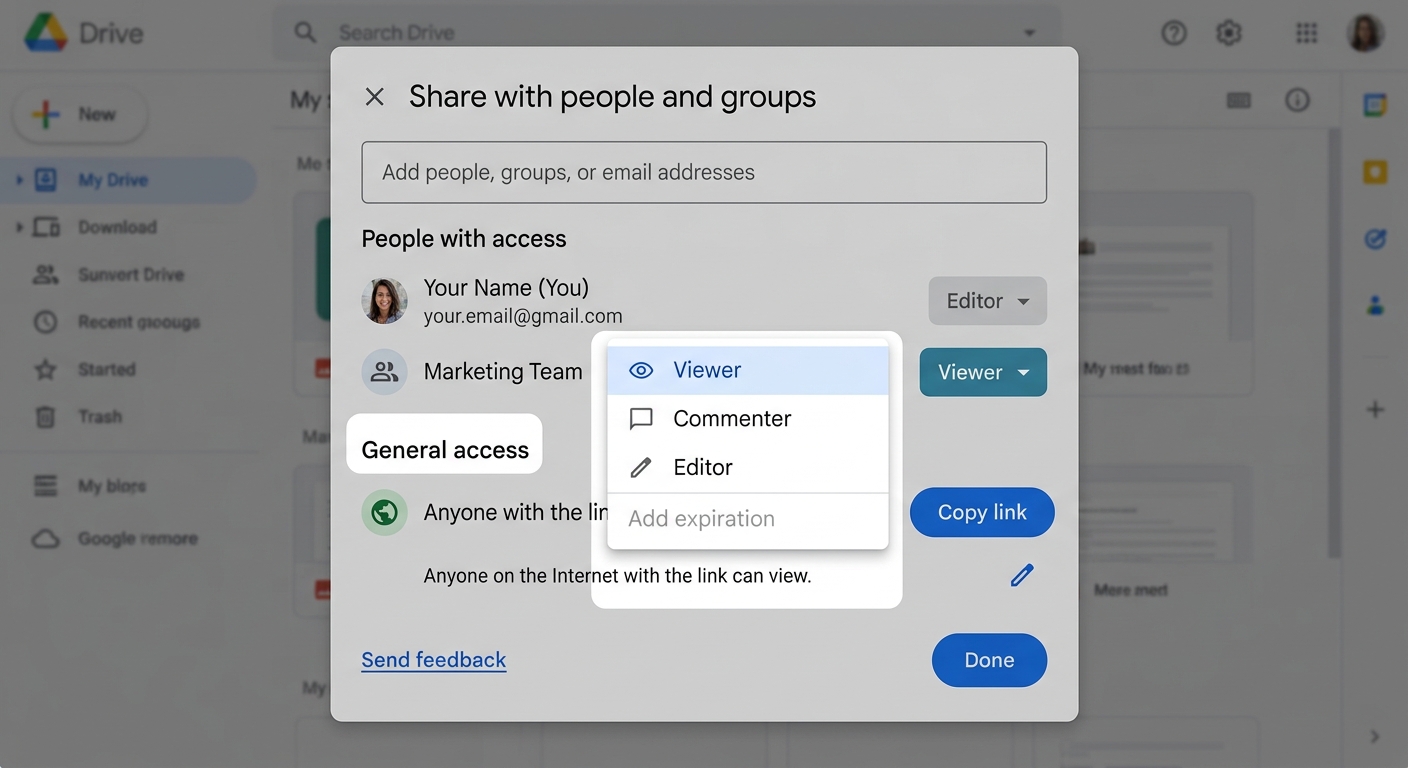
Figure 3: Ensure General Access is set to 'Anyone with the link' and the role is locked to 'Viewer'.
To make sure your buyers can open and download files without requesting manual edit permissions:
- Right-click the folder or delivery file in Google Drive and select Share > Share.
- Under General access, change Restricted to Anyone with the link.
- Set the role strictly to Viewer.
Step 4: Selling and Automating Delivery Across Platforms
Once your Google Drive files and Canva template links are staged, connect them to your online storefront for automated fulfillment.
| Platform | Recommended Delivery Approach | Key Advantage |
|---|---|---|
| Etsy | Upload the Access PDF directly to the listing's digital files section. | Automated post-checkout download delivery natively handled by Etsy. |
| Shopify | Use digital download apps (e.g., Digital Downloads, SendOwl) to email the Access PDF. | Full control over post-purchase email branding and customer lists. |
| Gumroad | Attach the Access PDF or redirect buyers directly to the Google Drive link post-purchase. | Built-in license key management and instant URL redirection options. |
| Payhip | Upload the Access PDF as the primary digital asset on the product page. | Zero transaction fee options for low-volume sellers. |
How to Organize & Showcase Large Canva Template Bundles with BundleShelf
While delivering a simple PDF link works for single templates, selling large multi-category bundles via Google Drive often creates a fragmented buyer experience.
The Problem with Messy Google Drive Folders for Buyers
When a buyer opens a standard Google Drive folder containing dozens of subfolders, plain PDF guides, and unrendered asset files:
- They face a plain, grey list of file names rather than visual design previews.
- They often download raw files accidentally instead of clicking the embedded Canva links.
- Customer support queries increase as buyers get lost in nested cloud folders.
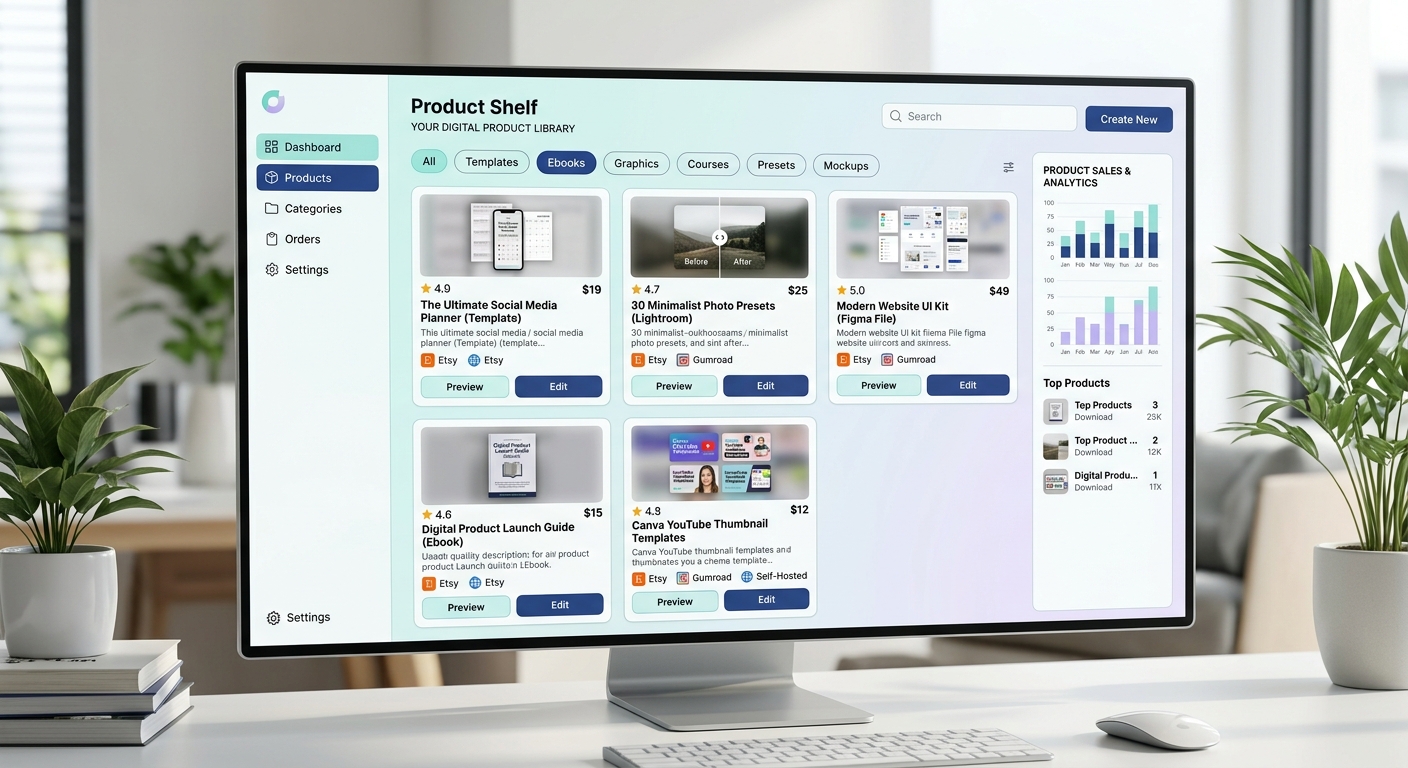
Figure 4: Transform plain text file links into a visual digital product catalog using BundleShelf.
Transforming Raw Google Drive Folders into Visual Product Libraries
To provide an elite customer experience, creators use BundleShelf to transform raw Google Drive asset repositories into visual, interactive digital shelves.
By connecting your Google Drive folders to BundleShelf, you can:
- Display visual thumbnail cards for every template section in your bundle.
- Group related Canva links alongside downloadable bonus files in one sleek showcase page.
- Reduce buyer confusion by giving customers a clear, search-friendly catalog where they can preview designs visually before clicking through to Canva.
Comparison: Traditional Delivery vs. Cloud-Hub Template Delivery
| Delivery Metric | Direct File Upload (Traditional) | Cloud Hub (Canva + Google Drive + BundleShelf) |
|---|---|---|
| File Size Cap | Highly restricted (10 MB – 20 MB max on most marketplaces) | Virtually unlimited (GBs of high-resolution assets) |
| Master File Protection | High risk of accidental edits if wrong links are shared | 100% protected via Canva Template Links & Drive Read-Only permissions |
| Updating Products | Requires re-uploading files and emailing old buyers | Real-time updates; buyers instantly see new additions in Drive/BundleShelf |
| Customer Experience | Basic PDF download with plain text hyperlinks | Visual digital showcase with categorized template access |
Common Mistakes When Selling Canva Templates via Google Drive (And How to Fix Them)
- Mistake 1: Sharing an Edit Link instead of a Template Link.
Fix: Verify that your Canva share URL contains the wordtemplateand prompts a "Use template for new design" landing page when clicked in an incognito browser window. - Mistake 2: Leaving Google Drive Permissions on "Restricted".
Fix: Test your Google Drive links in a private/incognito window before publishing. If prompted to "Request Access", your permissions are incorrect. - Mistake 3: Giving Buyers "Editor" Access in Google Drive.
Fix: Ensure the access role is set strictly to Viewer. - Mistake 4: Deleting Source Files from Google Drive.
Fix: Do not delete or move your master Google Drive folders after launching your product listing, as doing so permanently breaks your customer download links. - Mistake 5: Overlooking Third-Party E-Commerce Terms.
Fix: Review industry guidelines such as Sellfy's digital product delivery framework and official platform terms to ensure full legal compliance.
Frequently Asked Questions (FAQ)
Do I need a Canva Pro account to sell Canva templates?
Yes, a Canva Pro or Canva for Teams subscription is required to generate official Canva Template Links. While free accounts allow you to share collaboration edit links, only Pro accounts give you the dedicated "Template Link" generator needed to protect master files from customer edits.
Do my customers need Canva Pro to use the templates?
No. As long as you construct your master templates using free Canva elements, fonts, and stock photos, buyers can edit, customize, and export their designs using a completely free Canva account.
What happens if I update a design in Canva after selling it?
When you update a design inside Canva, anyone who clicks your Canva Template Link in the future will receive the newest version. However, customers who have already clicked "Use Template" and saved a copy into their personal accounts will retain their existing copy and will not be automatically overwritten.
Can customers re-sell or redistribute my Google Drive delivery links?
To protect your intellectual property, include a clear Copyright Statement and Commercial Use License inside your delivery PDF. State explicitly that your links, templates, and bonus materials are licensed strictly for end-use and cannot be resold, sub-licensed, or shared publicly.
How do I prevent buyers from losing their access PDF?
By hosting your access PDFs and supplementary resources inside a Google Drive delivery folder or a visual showcase hub, buyers can bookmark the link and return to re-download their files whenever needed.
Conclusion & Next Steps
Selling Canva templates using Google Drive as your delivery backbone is one of the most efficient, scalable ways to build a profitable digital product business. By separating your master design creation in Canva from your cloud delivery infrastructure in Google Drive, you safeguard your master assets, overcome file size restrictions, and offer seamless multi-template bundles.
Ready to Organize Your Digital Products?
Turn messy cloud folders into beautiful visual digital shelves that delight your customers and boost repeat sales.
Explore Digital Product Tools on BundleShelf